How to Check Balance In Globe: Load & Data Inquiry

To check balance in Globe instantly, you can dial *143#, send BAL to 8080, or open the GlobeOne app to view your load, data balance, and account details. These quick methods provide real-time updates, so you always know your remaining credits and promo status. Below, you’ll find the simplest steps for Globe balance inquiry.
How To Check Balance In Globe?
Below are the details guide, along with screenshots, to check your Globe load balance and data. You can use any of the above methods to check your prepaid balance:
Online Balance Inquiry
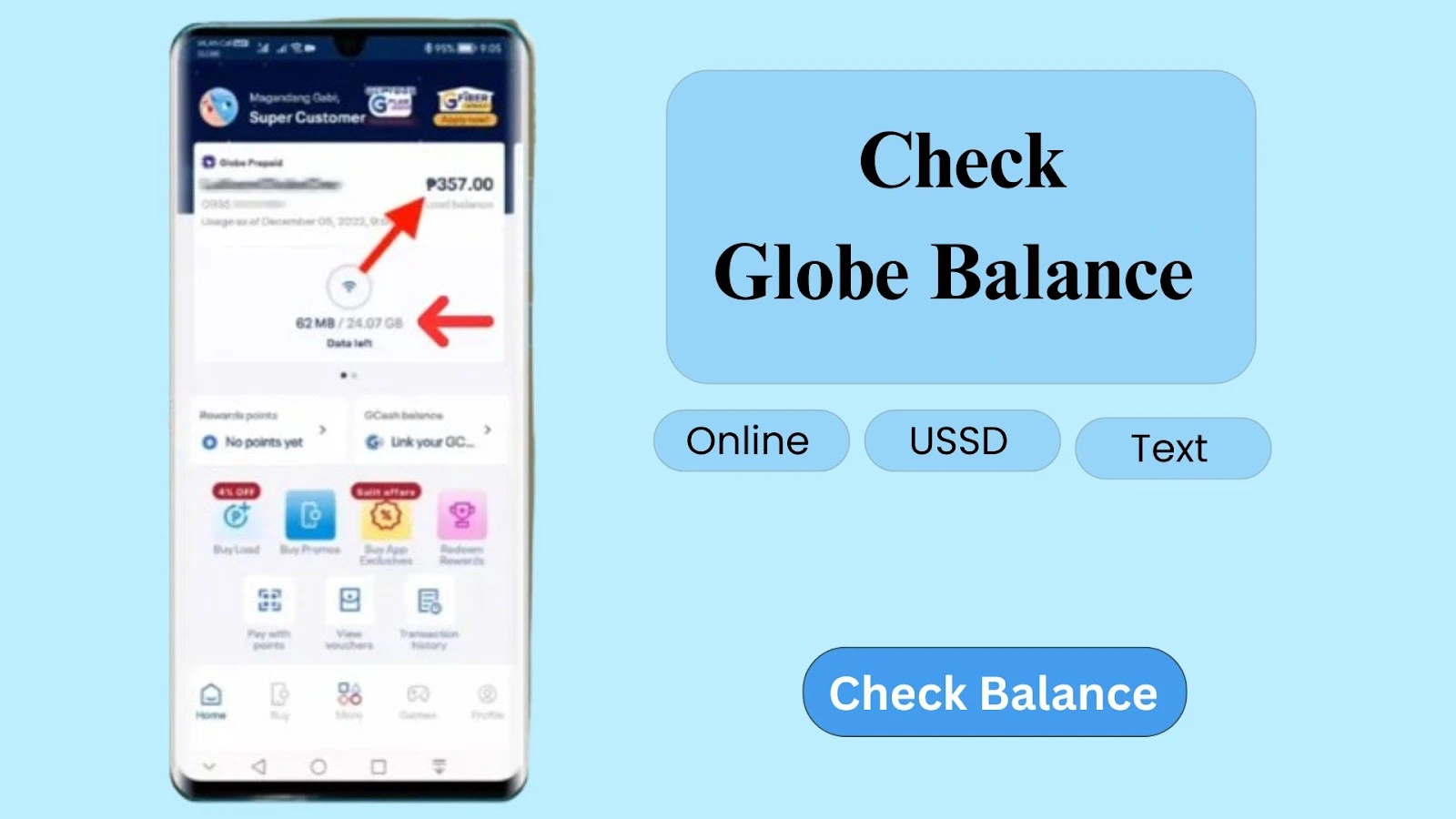
Here is the step-by-step guide to check data balance and regular load in Globe online via app and Globe registration portal:
- First of all, download the GlobeOne and log in to your account.
- Navigate to the “balance check section” or just search using the search option.
- There you will get details about all your balances, including the data balance and load balance.
- You can also track the balance and data usage through this method.
Check via USSD (*143#)
Follow the below given steps below to check via Globe balance inquiry number:
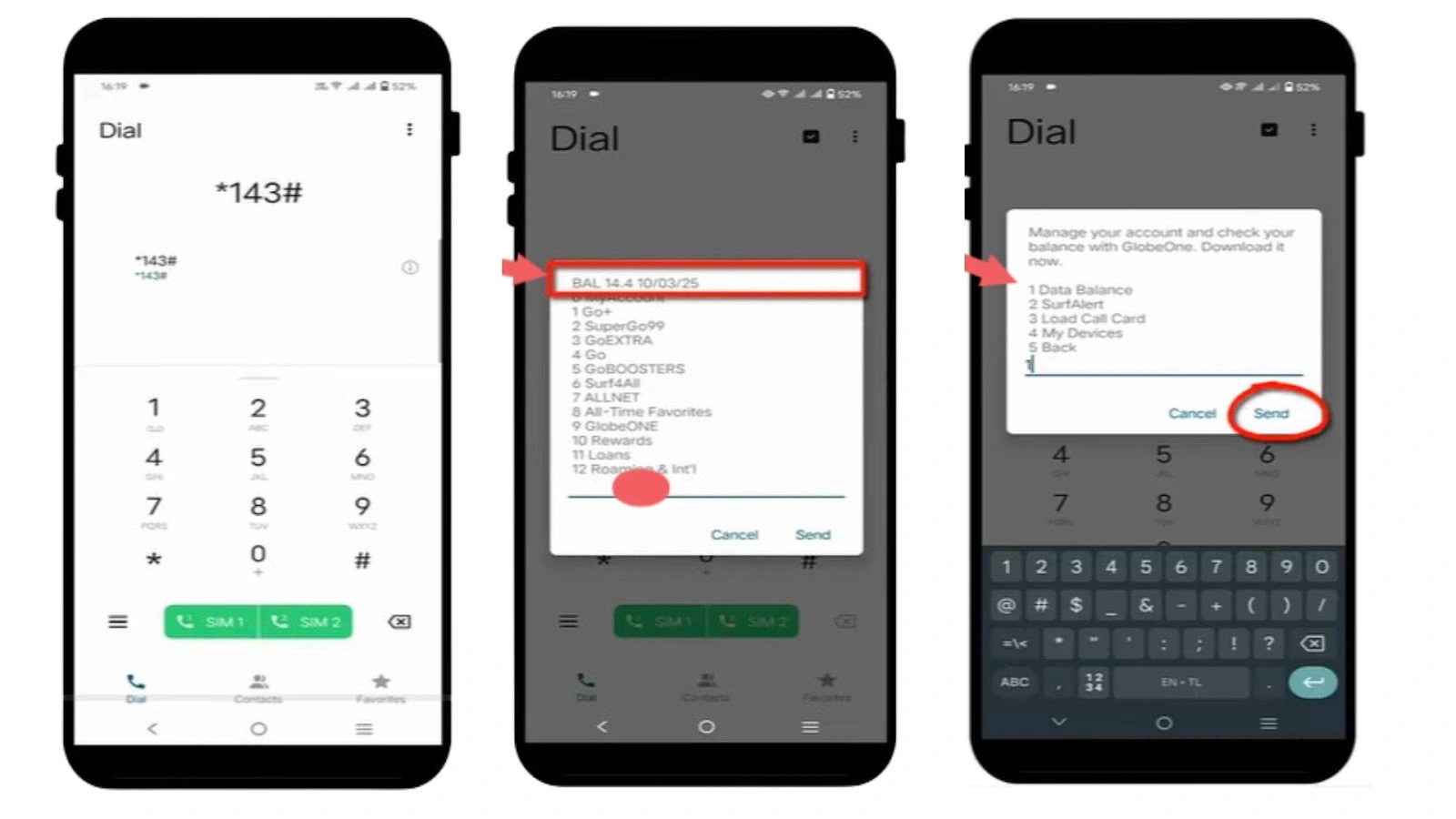
- Dial *143# and press the call button. Make sure to do the process using your Globe SIM.
- You will get a menu list. On top of that list, you will get your load balance along with the expiry date.
- To check the data balance in Globe, write “O” and click the “send” button.
- Now, type “1” and click “send” for data balance inquiry.
- Once done, you will get your balance details via SMS.
Check Via Text (8080)
Here is how to check the load balance and data in Globe via 8080:
- Open your phone’s Messages app.
- To check regular load balance: type BAL and send it to 8080.
- To check data balance: type DATA BAL and send it to 8080.
- You should receive an SMS from Globe with your balance.
- It includes: remaining load (₱), mobile data left (MB/GB), and promo expiration dates or validity. click here to convert Globe load to GCash.
Best Way To Check Balance?
Below I have provided a quick comparison between each method that would help you to choose the best method to know the load balance and data in the globe:
Method | Available Hours | Speed | Best For |
GlobeOne App | 24/7 app access | Instant app update | Convenient mobile checking |
USSD (*143#) | 24/7 (anytime) | Instant, menu-based | Quick balance check without internet |
SMS (8080) | 24/7 (anytime) | SMS response time | Simple text-based balance info |
How to Check Data Balance in Globe Pocket Wi-Fi?
Here is the step-by-step guide to check the Data balance in the Globe Pocket Wi-Fi online:
- Open the GlobeOne app and log in to your account.
- Now navigate to the search bar and search “balance”.
- You will get various options. Click the “Globe pocket wifi” to check its balance.
In the GlobeOne app, you will get all the details about your Globe pocket wifi data, including used balance, remaining balance, and expiry date.
Troubleshooting the Common Errors
Sometimes, minor issues occur when checking the balance on a Globe or TM SIM card. Below, I have provided the working solutions to these issues that would help you to check your balance smoothly:
- USSD Menu Not Responding: Restart your phone, toggle Airplane Mode on/off, ensure you are using a Globe SIM, and check for a stable network signal. If persistent, reset network settings or turn off an unused SIM card if using a dual-SIM device.
- No SMS Reply from 8080: Confirm the correct keyword and number, send from Globe SIM, and retry after some time. Restart your phone or toggle mobile data if no response.
- GlobeOne App Crashing: Update or reinstall the app, clear app cache, ensure internet connection, and log out/in again to refresh data.
- Incorrect or Outdated Balance Display: Wait several minutes for the system update, try alternative methods for confirmation, and restart your device.
- Network or Signal Issues: Move to stronger signal areas, restart phone, toggle Airplane Mode, or contact Globe support if unresolved. Click here for Globe APN settings to achieve a smooth network connection.
FAQs
Conclusion
You can check your balance with multiple options like dialing *143#, texting BAL or DATA BAL to 8080, or using the GlobeOne app. Each method helps you to view your load balance, data balance, and promo details instantly. You can use any of these methods according to your preference.